How to ask AI about a screenshot on Windows
To ask AI about a screenshot on Windows, press Windows+Shift+S, drag over the part of the screen you mean, then paste it with Ctrl+V into the AI chat you already use and type your question. That needs no new software. If you ask often, an app can take the picture for you: Copilot Vision watches your screen while you talk, the Google app lets you pick part of the screen with Lens, and Tendor sends your screen and your question to the AI you choose with one hotkey.
Below are all five ways, with the keys to press, which AI each one uses, what it costs and where the picture goes. Every claim about another app links its source, checked on 21 November 2026.
Tendor puts a note or an AI question one hotkey away, in any Windows 11 app. Free to start.

The five ways at a glance
| Way | What you press | Which AI | Cost |
|---|---|---|---|
| Snip and paste | Windows+Shift+S, then Ctrl+V in the chat |
Any chat site you use | That chat's plan; free plans limit uploads |
| ChatGPT's Windows app | Alt+Space, then paste the snip |
OpenAI's | Your ChatGPT plan |
| Copilot Vision | Windows+C, start talking, share your screen |
Microsoft's | A Microsoft 365 Personal, Family or Premium subscription |
| The Google app | Alt+Space, then Lens or screen sharing |
Google Search's AI | No price on Google's page |
| Tendor | Ctrl+,, then ?! and your question |
Anthropic, OpenAI, Google, Groq, xAI, DeepSeek, Mistral or OpenRouter, with your own key | Free for 20 questions a day, or $4.99 a month, plus what your provider bills for your key |
Snip and paste into any AI chat
The way that works everywhere, with nothing to install:
- Press
Windows+Shift+S. The screen dims. - Drag over the part you want to ask about. Windows copies it to the clipboard.
- Open the AI chat in your browser, click in the message box, press
Ctrl+V, type your question and send it.
Free plans ration this. ChatGPT's free plan, for one, lists uploads and image understanding as limited.
The better choice when you ask about your screen now and then, in a chat you already use. You pick exactly which part of the screen goes, and nothing new runs on your PC. The cost is three steps and a trip to the browser every time.
ChatGPT's Windows app
OpenAI's Windows app adds a shortcut: with the app open, Alt+Space brings up a small companion window where you can ask anything and upload files. OpenAI's help page doesn't describe a screenshot button, so the dependable way is still to snip with Windows+Shift+S and paste the snip into that window. The app needs Windows 10 or later.
The better choice when ChatGPT is already where you ask everything, and OpenAI's models are the ones you want. ChatGPT keyboard shortcut on Windows vs Tendor compares the app with Tendor in detail.
Copilot Vision
Copilot on Windows can look at your screen while you talk to it. Start a voice chat with the Copilot key or Windows+C, then choose the screen share arrow to share your desktop. Microsoft says vision works only during a voice conversation, and that it needs a Microsoft 365 Personal, Family or Premium subscription on a personal account, or a Copilot license on a work account. It explains what it sees, but it won't click, type or scroll for you.
The better choice when you'd rather talk a problem through out loud than type it, and you already pay for Microsoft 365. It isn't made for a quick typed question, and the AI is Microsoft's.
The Google app for desktop
Google's Windows app opens from anywhere with Alt+Space. With Lens and screen sharing built in, you can ask about any part of your screen, a single window or the whole screen, and the answers come from Google Search with links to the web. It needs Windows 10 or later and is for users 13 and older, and Google notes that its AI Mode isn't yet available for every account, country and language. Google's page doesn't list a price.
The better choice when you want the web's answer about something on screen: what a product is, or what a sign says in English. Lens also lets you pick just the part you mean.
Alt+Space is the default shortcut of both the Google app and ChatGPT's app, and only one app can hold it. OpenAI's help page says ChatGPT's shortcut won't work while another app has it, and that you can change it in ChatGPT's settings.
Ask AI about a screenshot on Windows with Tendor
Tendor is a small Windows app for notes and AI questions that opens over any app with one hotkey. Asking about your screen takes one line:
- Press
Ctrl+,in whatever app you're in. The Input Window opens. - Type
?!and your question, like?! why is the sidebar overlapping the content?, and pressEnter. - Tendor hides the Input Window, takes a picture of your main screen and sends it with your question. The answer appears in a small window, where you can ask follow-ups.
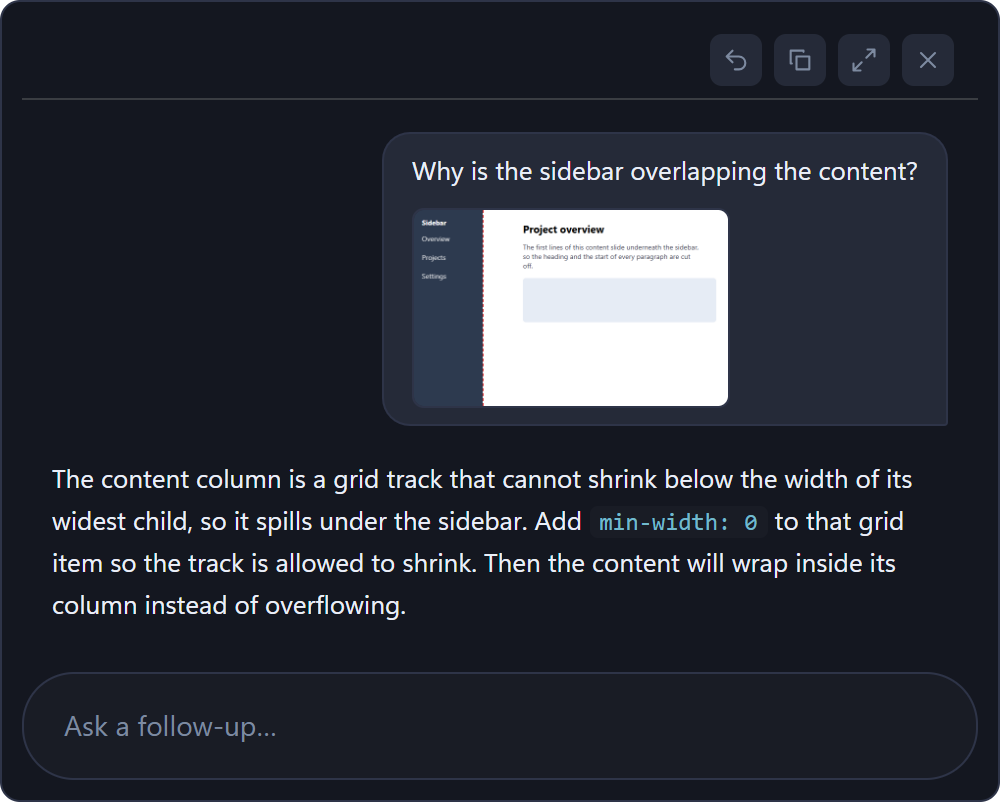
- Your AI, your key. You add your own API key for Anthropic, OpenAI, Google, Groq, xAI, DeepSeek, Mistral or OpenRouter in Settings and pick the model. The model has to read images; if the one you chose can't, Tendor tells you instead of sending.
- Just part of the screen.
?!sends your whole main monitor. To send one region, or something on a second monitor, snip it withWindows+Shift+S, paste it into the Input Window withCtrl+V, and start your question with?. - The AI can ask to look. Ask with a plain
?and, if the question needs your screen, the AI can ask for it. Tendor shows "Share your screen?" and sends nothing until you choose Share. - What it costs. The Free plan includes 20 AI questions a day, screenshots included, and follow-ups in the same conversation don't count. Monthly, at $4.99, lifts the limit. Your provider bills you directly for what you use with your key. See pricing.
- What it runs on. Windows 11.
The better choice when you ask about your screen often, from any app, and want to choose the AI yourself and keep your own key. Where it's weaker: ?! always takes the whole main screen, while a snip or Lens picks a region in one go.
Where the screenshot goes
Every way here sends the picture to an AI company. What differs is which company, and under whose account.
- Snip and paste, or ChatGPT's app: the company behind the chat, under your account there.
- Copilot Vision: Microsoft.
- The Google app: Google.
- Tendor: straight from your PC to the provider you chose, under your own key. It doesn't pass through Tendor, and Tendor never receives your screenshots, as the privacy policy says.
Before you send a whole screen, look at what's on it: every open window and notification goes too.
Which one to use
- Now and then, in a chat you already use: snip and paste.
- ChatGPT for everything: its Windows app and
Alt+Space. - You'd rather talk than type, and pay for Microsoft 365: Copilot Vision.
- You want web results about what's on screen: the Google app and Lens.
- Often, from any app, with the AI and key you choose: Tendor. The same hotkey takes a note when you start with
_; the guide lists every command.
Sources
Checked on 21 November 2026.
- Keyboard shortcuts in Windows, Microsoft:
Windows+Shift+Scopies a selected region of the screen to the clipboard. - ChatGPT pricing, OpenAI: the free plan's uploads and vision are limited.
- Using the ChatGPT Windows app, OpenAI: the
Alt+Spacecompanion window, file uploads, the shortcut clash and the Windows 10 requirement. - Get started with vision capabilities in Microsoft Copilot, Microsoft: how to start vision, voice only, the subscription it needs and what it won't do.
- The Google app for desktop, Google:
Alt+Space, Lens and screen sharing, Windows 10 or later, users 13 and older, AI Mode availability. - The Google app for desktop is now available for Windows users around the world, Google, 14 April 2026: available worldwide in English.
Tendor puts a note or an AI question one hotkey away, in any Windows 11 app. Free to start.
Read next
ChatGPT keyboard shortcut on Windows vs Tendor
The ChatGPT keyboard shortcut on Windows is Alt+Space. Here is how it compares with Tendor's hotkey for any AI on your own key, and with Claude and Gemini.